Troubleshooting Access to the ARMA Website
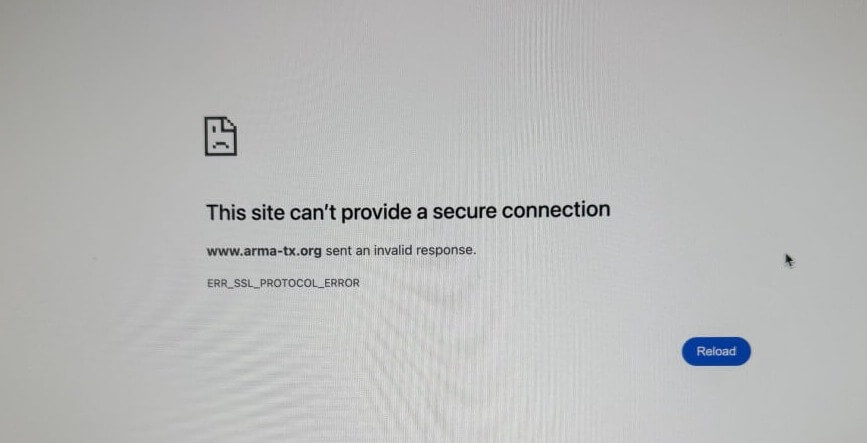
Due to some privacy and firewall settings with organizations, you may have trouble accessing the ARMA website.
Please try the following solutions to fix the error message:
- Your computer may be using the certificate from the old website and isn't fetching the certificate from the new site
The first thing to try inside Chrome is:
- Windows / Linux: Press
Ctrl + F5 or Ctrl + Shift + R.
- Mac: Press
Cmd + Shift + R.
That should refresh the SSL certificate in Chrome, but, sometimes it's actually Windows (or OSX) holding onto the old certificate. You'll know it's the operating system holding onto the certificate if you try multiple browsers (Chrome, Firefox, Safari, Edge, etc...) and they also tell you the SSL is bad. In that case, you need to tell the operating system to clear its SSL cache too:
Windows
- Open your Windows Start menu, type Internet Options, and press Enter.
- In the properties panel, click the Content tab.
- Click the Clear SSL state button.
- Click OK on the success pop-up and reload your page in Chrome
Mac
- Open Keychain Access via Applications > Utilities.
- Click Certificates in the category sidebar.
- Locate the certificate for the specific website causing issues.
- Right-click the certificate and select Delete to force a clean re-handshake
-
Try a new browser, same error?
-
Try to do a hard refresh (the ctrl + shift + r keystrokes above)
-
Clear the operating systems cache
If you still have any issues reaching the ARMA website, try connecting your computer or mobile device to a cellular hotspot, and re-load the website.
We are excited for you to give the new portal a try! Please reach out to ARMA staff with any questions.